Import🔗
Use this method to import multiple Identities at once from a CSV file into the local NACVIEW database.
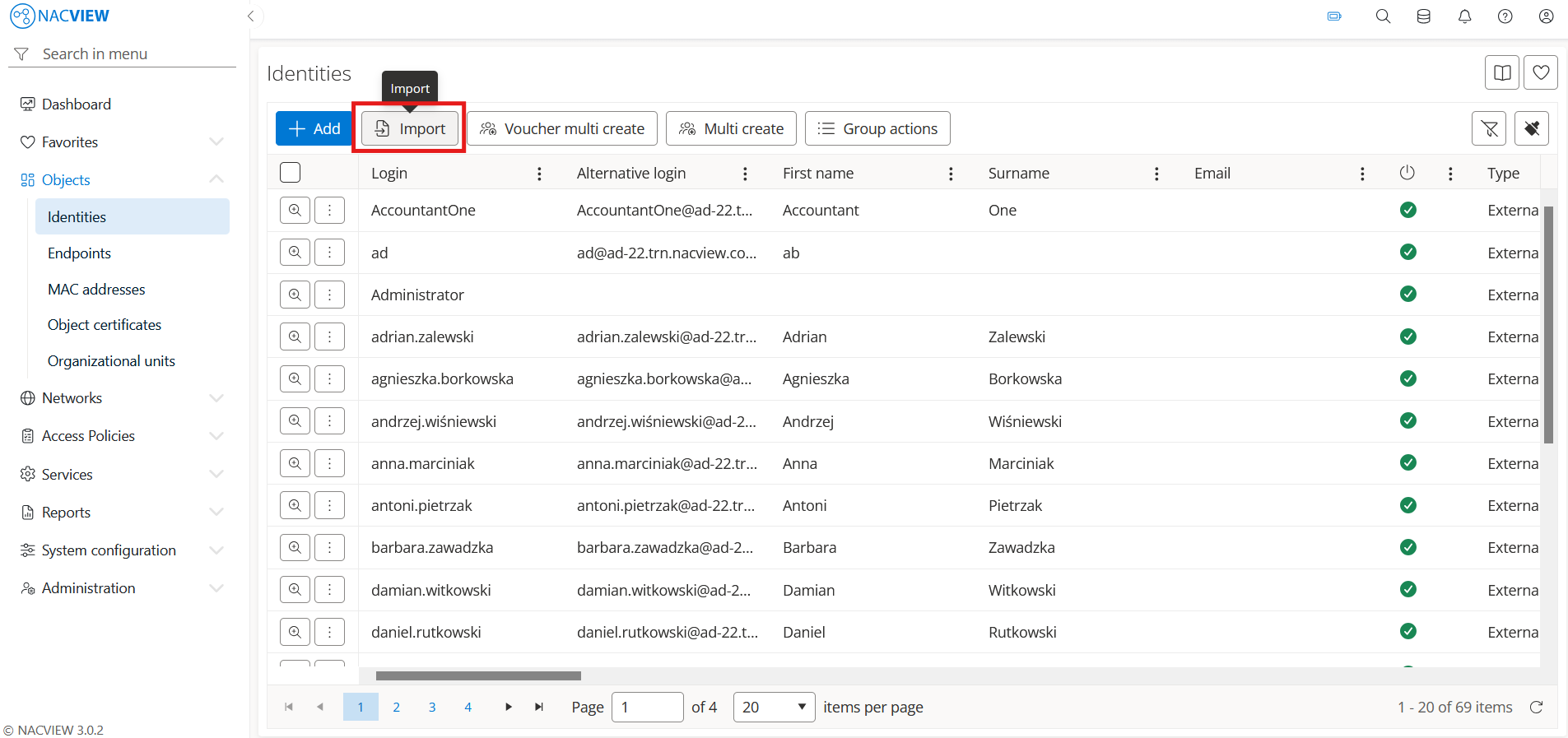
Open Objects and go to Identities.
Select the
Importbutton. The Import Identities wizard opens.
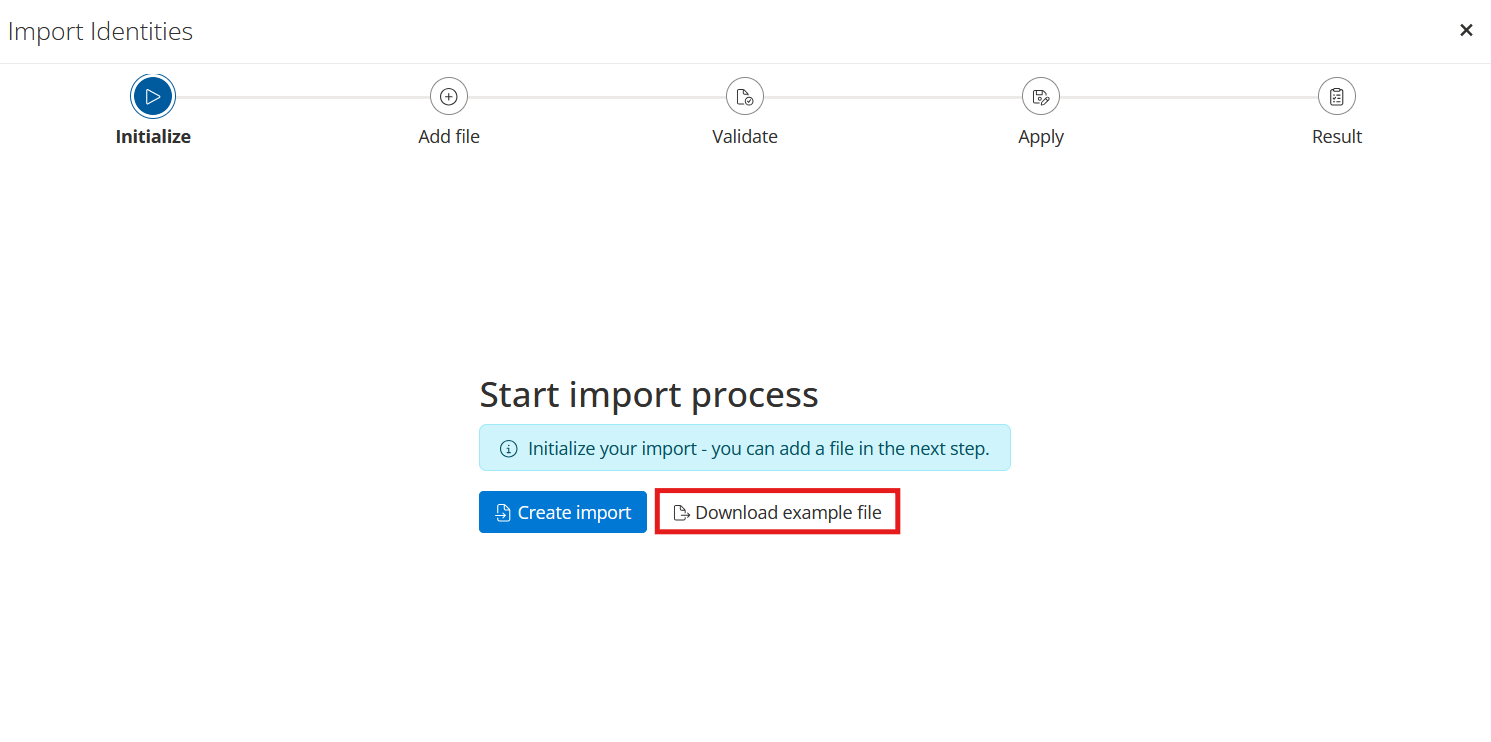
Select the
Download example filebutton.
Fill in the downloaded file with your own data.

Note
The CSV file must use commas (,) as column separators. Fields that
contain multiple values, such as object groups or administration
groups, must be enclosed in double quotes (e.g. "group_1,group_2").
Dates must follow the YYYY-MM-DD format (for example, 2026-02-01).
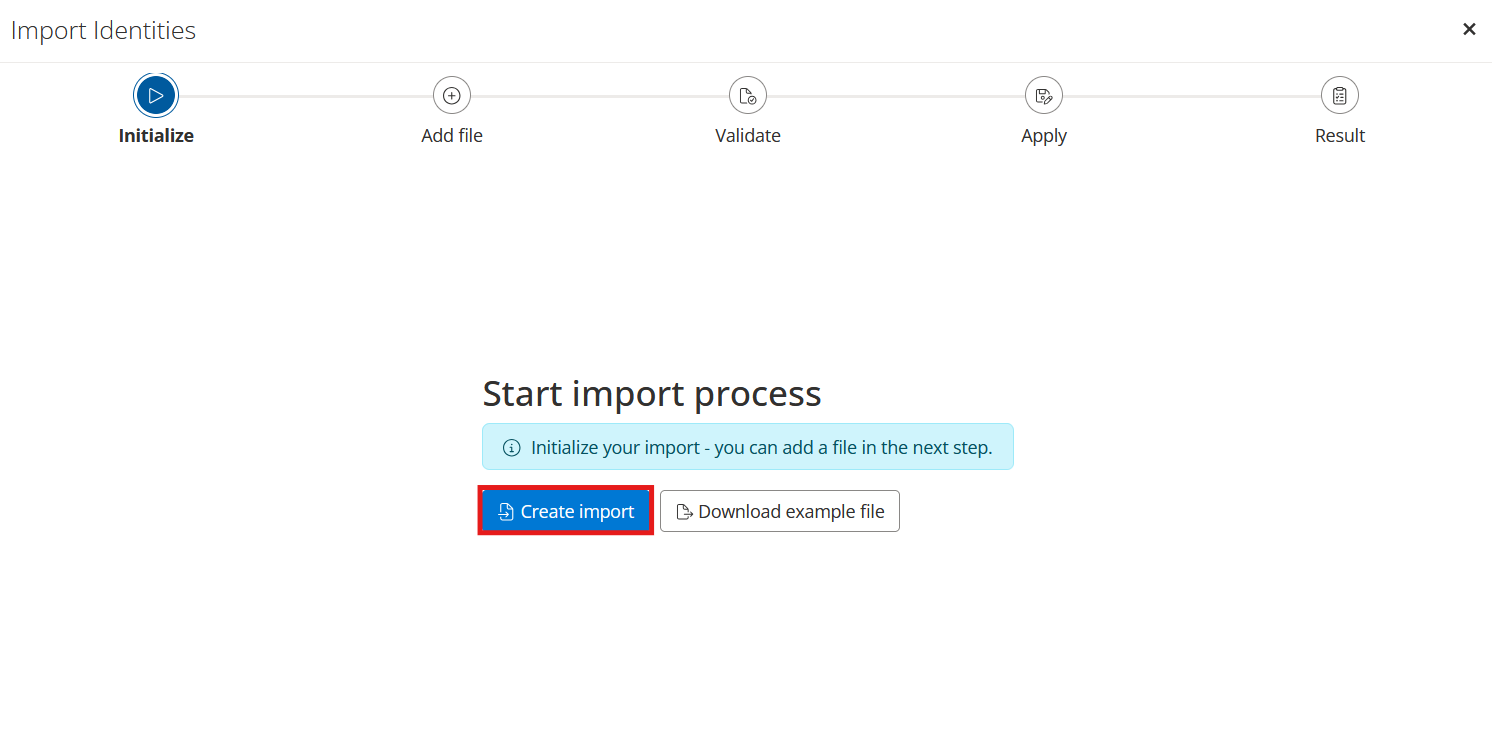
Select the
Create importbutton.
Use the
Select files…button to upload the CSV file to be validated, then select theValidatebutton.
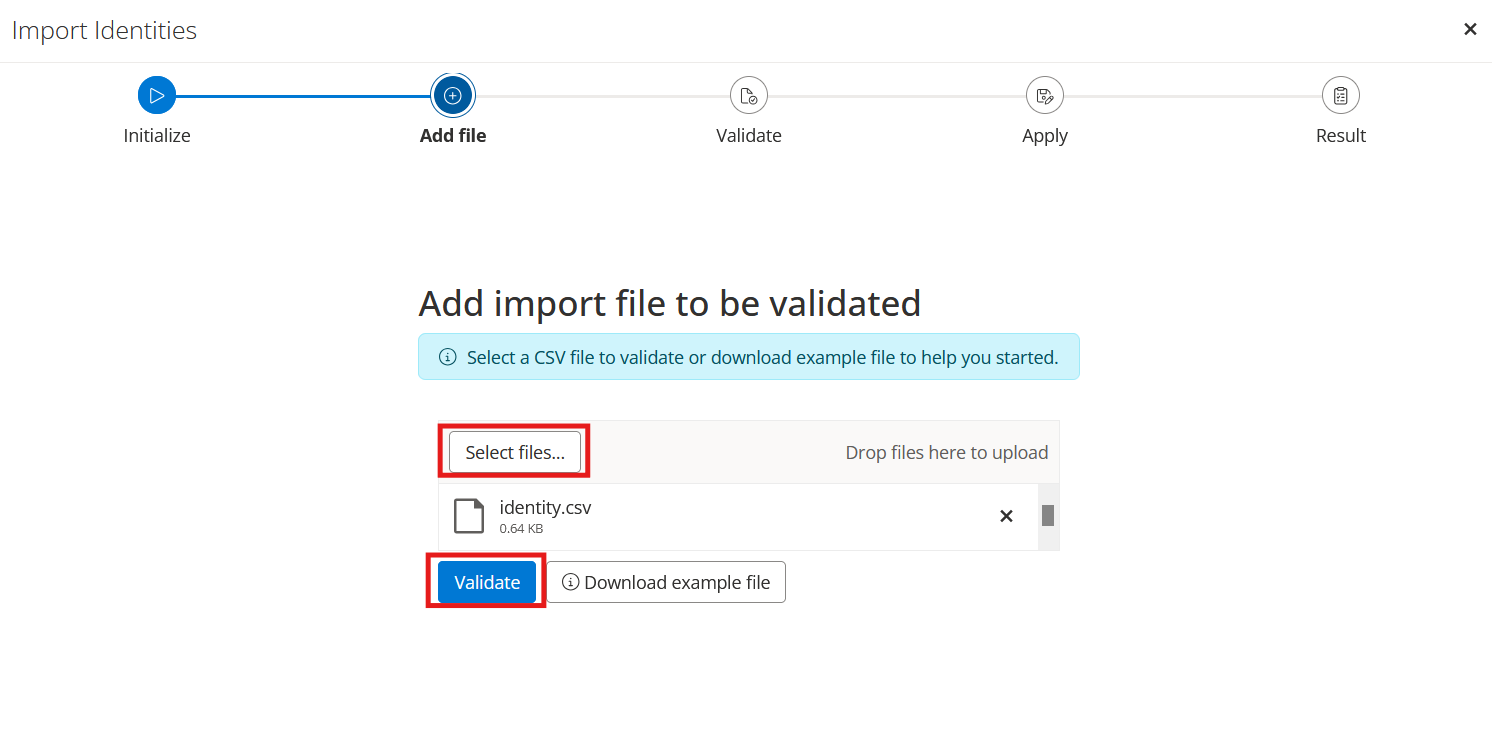
The system checks the uploaded file. If the file contains fatal errors, the file cannot be imported and the validation problems are listed (severity, code, field, value, and row index). Fix the reported rows in the CSV file, then select
Resetto start again.
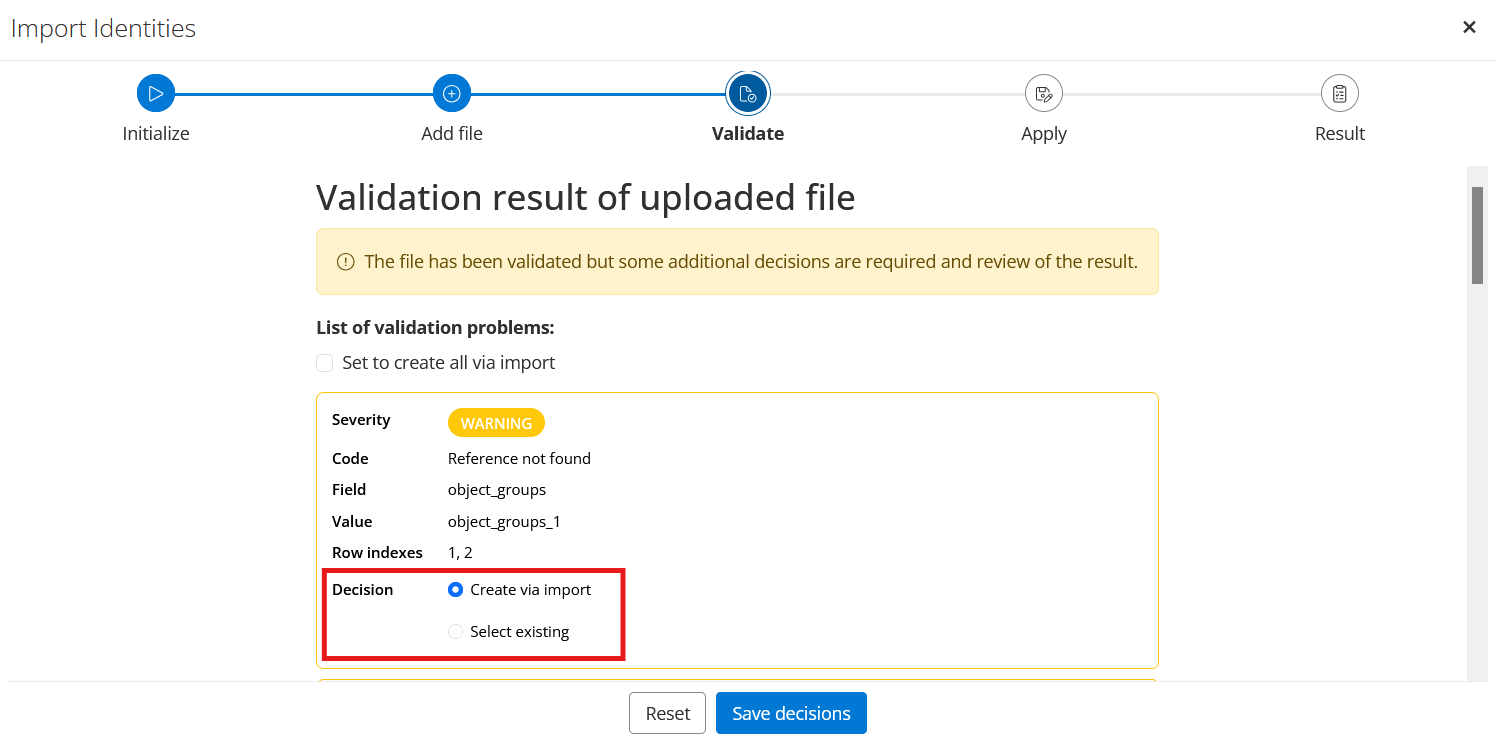
Warning
If the CSV file references an object that does not exist in NACVIEW (such
as an object group or administration group), the validation
returns a WARNING with the code Reference not found. This is not a
fatal error and the import can continue. For each reported reference,
choose a Decision: Create via import to create the missing
object, or Select existing to map it to an existing one. To apply the
same choice to all references at once, select Set to create all via import.
Select the
Save decisionbutton to confirm all decisions and continue.

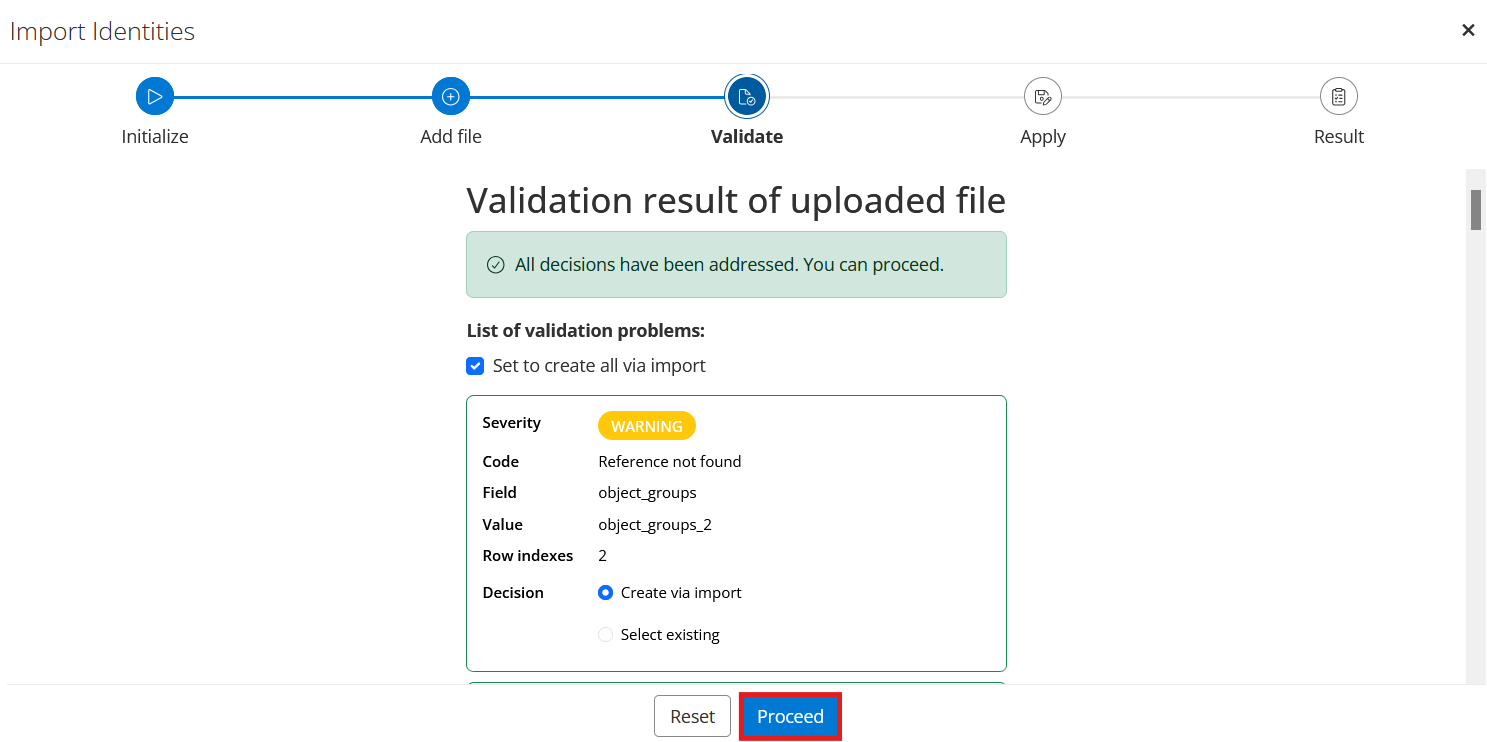
Once all decisions have been addressed, select the
Proceedbutton.
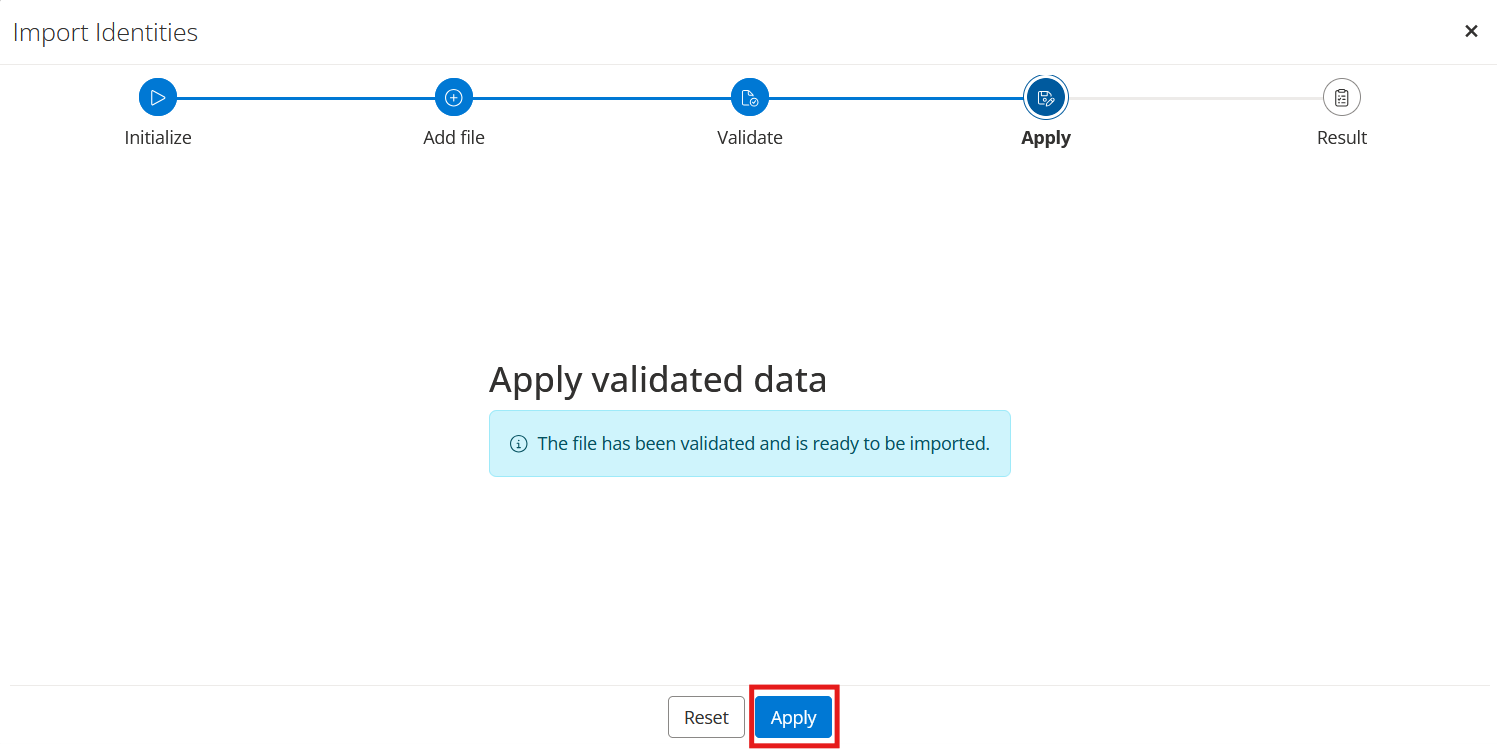
Select the
Applybutton to import the validated identities.
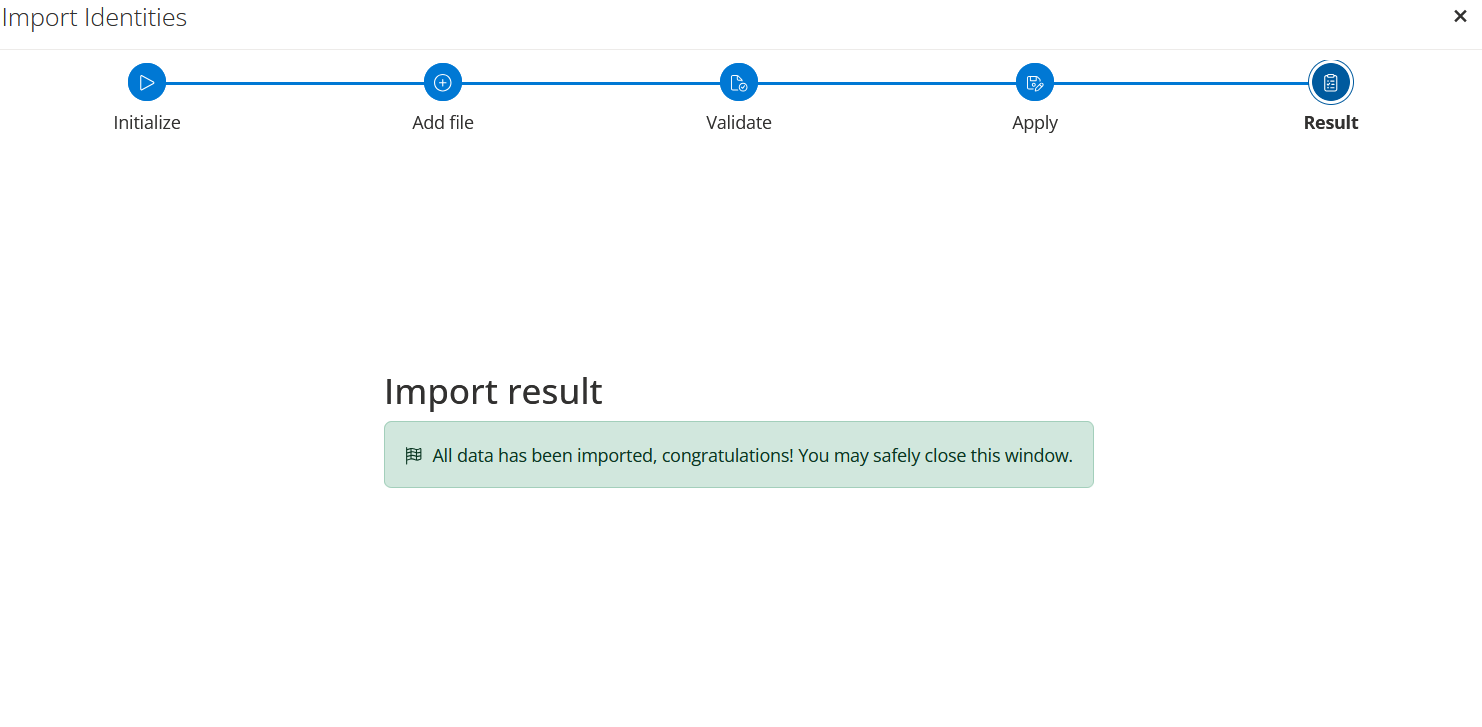
The Result step confirms that all data has been imported. You can safely close the window.